
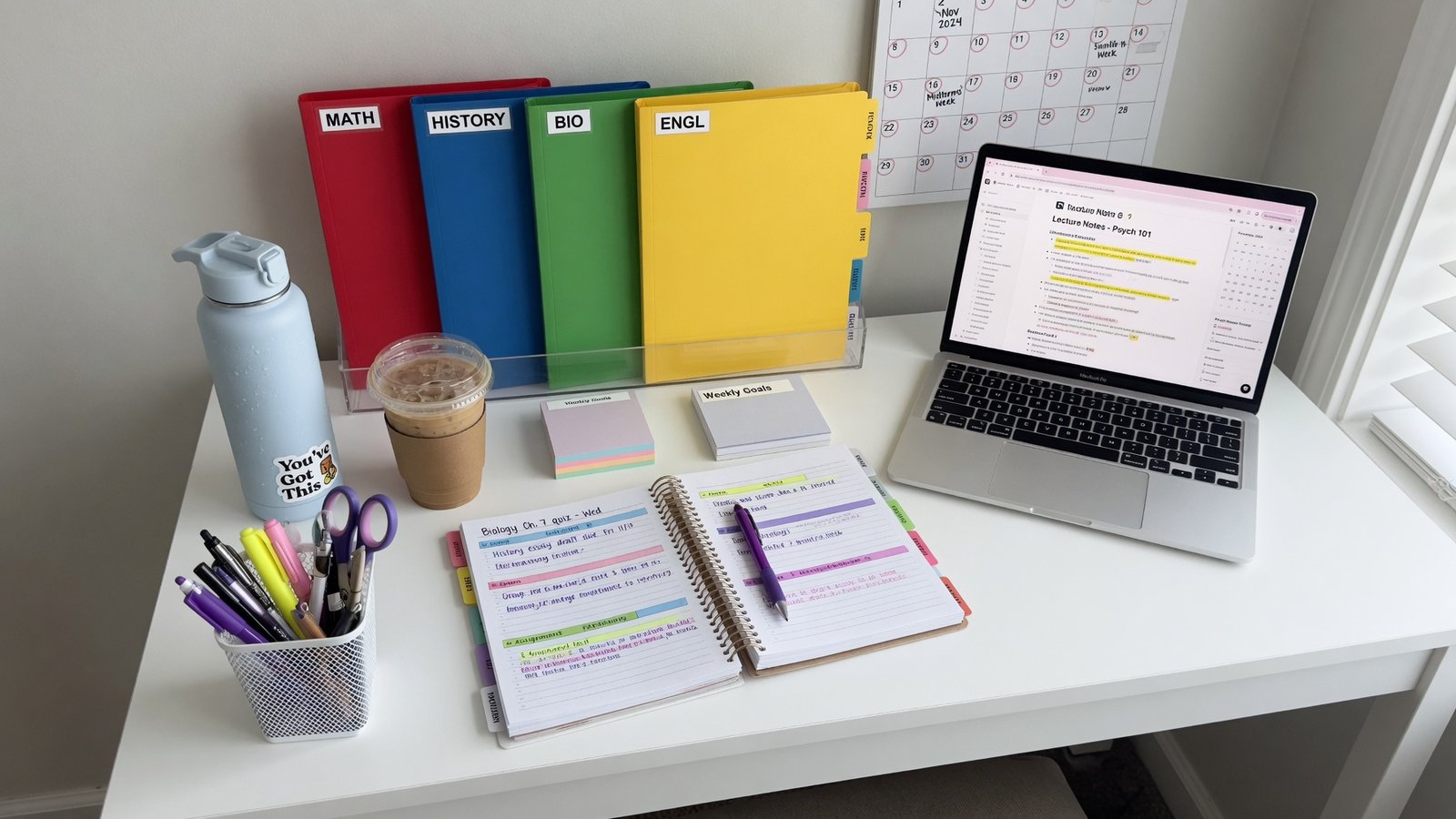
Organization isn’t a personality trait you’re born with—it’s a skill you build. If your backpack resembles a tornado’s aftermath, your assignments live scattered across three different notebooks, and you’ve missed deadlines because they never made it to your brain, you’re not lazy or disorganized by nature. You just haven’t found a system that clicks yet. This guide walks you through 15 proven organization systems, ranging from ultra-digital to completely analog, so you can pick the method that actually fits how your brain works.
The stakes matter here. Students who stay organized earn higher grades, experience less stress, and sleep better at night. They spend less time hunting for lost assignments and more time actually learning. More importantly, they develop habits that serve them in college, careers, and life. Let’s build yours.
Why Organization in School Actually Matters
Before diving into systems, let’s talk about why this matters beyond just “being neat.”
When you’re disorganized, your brain spends mental energy managing chaos instead of absorbing information. Every lost assignment creates anxiety. Every forgotten deadline triggers last-minute panic. Every “where did I put that note?” moment steals focus from learning. Research on executive function shows that external organization systems directly support internal focus and memory.
Beyond grades, organized students report lower stress levels, better sleep quality, and improved mental health. You’re not fighting yourself every morning. You know what’s due, where your materials are, and what you need to do. That certainty is powerful.
Quick Summary: Organization frees up mental energy for actual learning and reduces academic anxiety. It’s not perfection—it’s the foundation for sustainable student life.
The Foundation: Understanding Your Organization Style
The #1 reason organization systems fail is mismatch. You implement a complex digital system when you’re a tactile learner who thinks with pen and paper. You try a paper planner when you’re always on your phone. The system works against your brain instead of with it.
Before choosing a system, identify three things:
Your Primary Information Channel
- Are you visual (seeing information), auditory (hearing/discussing), or kinesthetic (doing/writing)?
- Do you naturally reach for your phone or a notebook first?
- When you need to remember something important, what method do you instinctively use?
Your Workflow Reality
- How many classes do you have?
- How much time between classes?
- Do you have access to a locker, or do you carry everything?
- How often are you actually at a desk vs. moving between locations?
Your Maintenance Capacity
- Can you commit to 10 minutes daily upkeep?
- Do you prefer “set it and forget it” systems or interactive planning?
- Are you detail-oriented or big-picture focused?
Quick Summary: Match your system to how your brain actually works, not how you think it should work.
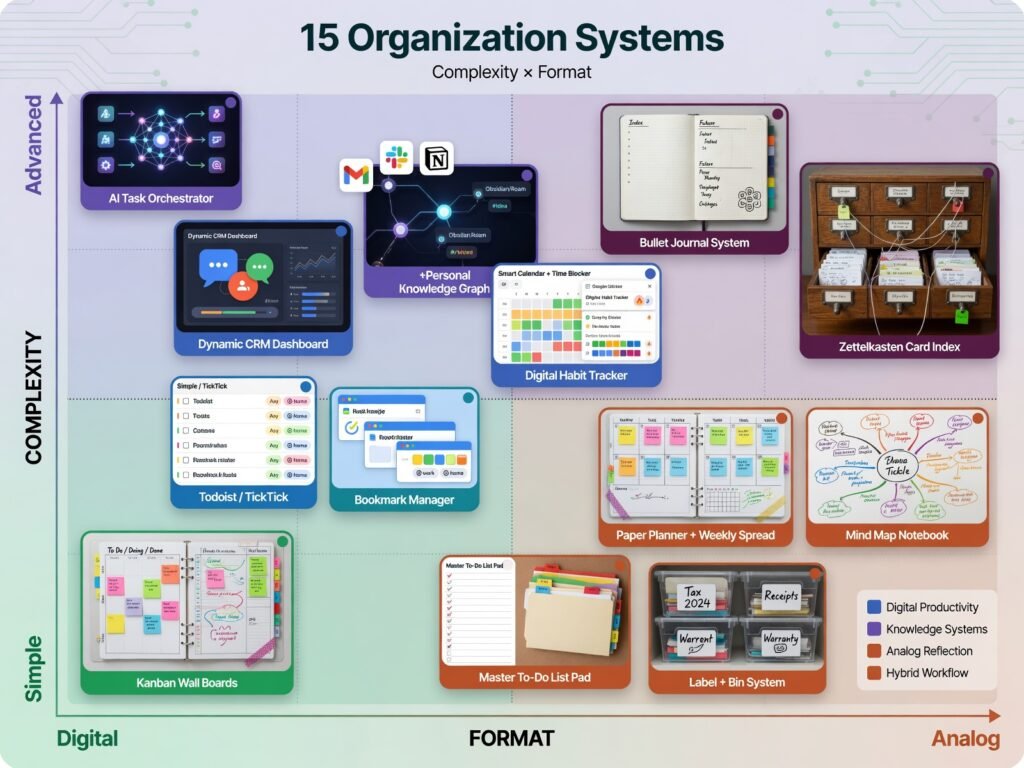
The 15 Organization Systems That Work
Systems 1–5: Digital-First Approaches
System 1: The Google Suite Ecosystem
This is the starter digital system. Use Google Calendar for deadlines, Google Classroom for assignments (if your school uses it), Google Drive folders organized by class, and a simple Google Docs checklist for daily tasks.
Setup: Create a Drive folder for each class. Inside each folder: “Assignments,” “Notes,” “Handouts,” “Grades.” Rename files with the date first (2024-01-15_Biology_Chapter3_Notes). This keeps everything sortable and searchable. Share the Drive folder with parents if they monitor assignments.
Why it works: Everything syncs across devices. Searchability is built in. You can access your materials from any computer. Zero learning curve if you already use Google.
Common mistake: Creating folders but never organizing files inside them. File organization is where this system lives or dies.
Professional tip: Use Google Drive’s “Starred” feature to highlight currently active assignments. Unstar when completed.
[Internal Link: Best digital tools for student organization]
System 2: Notion as Your Second Brain
Notion is a customizable workspace where you can build databases, checklists, and interconnected information. It’s powerful but has a steeper learning curve.
Setup: Create a Master Dashboard with: (1) Current Assignments database, (2) Classes database, (3) Notes organized by subject, (4) Calendar view of deadlines. Link assignments to classes so you see everything connected.
Why it works: Highly flexible. You can customize exactly what you see and how you see it. Templates reduce setup friction.
Common mistake: Overengineering. Your first Notion workspace doesn’t need 20 databases. Start simple: Classes, Assignments, Notes.
Professional tip: Use Notion templates from the community. “Student Dashboard” templates are designed specifically for this. Customize after implementation, not before.
System 3: Color-Coded Digital Calendar (Google Calendar + Color Rules)
Assign each class a specific color. Create a calendar for each class. All assignments, deadlines, and due dates appear as color blocks on your main calendar.
Setup: Create a calendar called “[Class Name]” for each course. Choose a distinct color. Add all deadlines as all-day events. For assignments with multiple parts (research due Tuesday, draft due Thursday), create separate events.
Why it works: Visual learners thrive here. One glance shows you what’s coming and which classes are busiest. Colors trigger memory encoding.
Common mistake: Not updating it regularly. This system requires daily input or it becomes useless.
Professional tip: Set calendar reminders for 3 days before major deadlines, not the day-of. You need time to plan.
System 4: Task Management App (Todoist or Microsoft To Do)
These apps let you create tasks with due dates, priorities, and subtasks. They’re lighter than Notion but more structured than a basic checklist.
Setup: Create a project for each class. Create tasks for every assignment and due date. Break larger projects into subtasks. Set priority levels (high = due this week, medium = due next week, low = not urgent).
Why it works: Satisfying to check off completed tasks. Forces you to break large projects into smaller steps. Mobile app keeps your to-do list in your pocket.
Common mistake: Creating tasks but ignoring priorities. Every task can’t be urgent. Prioritize ruthlessly or this becomes just another stress list.
Professional tip: Review your task list every Sunday evening. Reprioritize based on what’s actually due this week.
System 5: The “Notes App + Cloud Sync” Method
Use Apple Notes, OneNote, or Evernote. Organize notebooks by class. Take notes directly in the app. Search function finds anything instantly.
Setup: Create a notebook for each class. Inside each notebook, create notes for: “Class Notes,” “Assignments,” “Quiz Review,” “Handouts.” Date each entry. Use photos to capture handwritten materials and Handwriting Recognition features to make them searchable.
Why it works: Your notes live in your pocket. Searchable, backupable, accessible anywhere. Works if you mostly use one device (like a smartphone or iPad).
Common mistake: Disorganized note titles and dates. “Notes 1,” “Notes 2,” “Notes 3” is useless. Always use descriptive titles and dates.
Professional tip: Share specific notes with classmates for collaborative review before tests. Built-in accountability.
Systems 6–10: Analog (Paper-Based) Methods
System 6: The Bullet Journal for Students
A bullet journal is a customizable notebook where you use symbols (bullets, dashes, X’s) to organize tasks, events, and notes.
Setup: Use a numbered notebook. Create an index. Use monthly calendars (first 2 pages of the month). Create daily pages with the date. Use bullet symbols: • = task, – = note, × = completed. Add a “Classes” section where you note assignments for each class.
Why it works: Highly flexible and personalized. The act of writing embeds information in memory. Beautiful (if that motivates you) and private.
Common mistake: Making it too complicated. Beginners add excessive decoration that eats time. Simple layout = actually used.
Professional tip: Keep it in your backpack and review it during lunch. A tool you don’t carry doesn’t help.
System 7: The Color-Coded Binder System
One binder per class. Inside: dividers for “Notes,” “Assignments,” “Handouts,” “Tests/Keys,” “To-Do.” Assign a color to each class and use colored folders, tabs, and pens.
Setup: Label everything. Use a two-pocket folder inside the binder for loose papers waiting to be filed. Use sticky notes for quick reminders. Get a binder with a clear pocket on front and insert a printed checklist of current assignments visible from outside.
Why it works: Everything is physically organized in one place. Visual color system makes scanning fast. Low-tech, no passwords, no dead batteries.
Common mistake: Letting papers pile up loose. You must spend 5 minutes daily filing new papers or the system collapses.
Professional tip: Use a binder with a calendar pocket on the back cover. Write assignments directly on the calendar as you receive them.
System 8: The “File Cabinet” System (Folders at Home + Planner)
Maintain a physical file system at home. Use hanging folders for each class. Inside: “Assignments,” “Handouts,” “Notes,” “Tests.” Carry a small paper planner for daily/weekly reference.
Setup: Get a small file box or drawer. Create folders. At the end of each week, file papers from your binder into the home system. Carry a small planner (A5 size) with daily to-do lists and deadlines. Write assignments in the planner as you receive them, then reference during filing time.
Why it works: Your backpack stays light. You have a permanent backup at home. Planner keeps you accountable for daily follow-through.
Common mistake: The planner and file system getting out of sync. Use the planner as your source of truth for what needs filing.
Professional tip: Use a color-coded label system for folders. Match folder colors to class notebooks so you know instantly which folder gets which papers.
System 9: The Desk Calendar + Assignment Log Method
Keep a large desk calendar (18×24 inches) visible on your desk at home. Write assignments on the calendar as soon as you receive them. Maintain a spiral notebook “Assignment Log” with detailed assignment information (due date, materials needed, submission method).
Setup: Write assignments on the calendar on their due dates in different colors (red = major projects, blue = homework, green = tests). In the log, number each assignment, note the class, describe the assignment, list required materials, and track completion.
Why it works: A physical calendar is hard to ignore. The assignment log serves as a detailed reference. Works well if you have a consistent study location.
Common mistake: Calendar and log getting out of sync. Update both simultaneously when you receive an assignment.
Professional tip: Take a photo of your calendar every morning and set it as your phone wallpaper. You’ll see your schedule constantly.
System 10: The Weekly Planner Spread Method
Use a large weekly planner (like the Erin Condren or similar). Each week has sections for each day plus a running to-do list. Write assignments, deadlines, and to-dos by hand.
Setup: Buy a planner with a weekly spread format. At the start of each week (Sunday), write all due dates and assignments for the week. Use that week’s to-do list for daily tasks. Cross off as you complete. At the end of the week, migrate incomplete items to the next week.
Why it works: Seeing the entire week in one view helps you plan. Regular writing creates memory. Weekly review naturally falls into routine.
Common mistake: Overcomplicating the spreads with stickers and decorations (unless that actually motivates you—some people need pretty). Focus on functionality first.
Professional tip: Use a smaller planner (A5, fits in backpack) for daily carry and a larger master planner at home for weekly planning. Weekly review happens at home; daily reference happens in your pocket.
Systems 11–15: Hybrid and Specialized Systems
System 11: Digital Notes + Physical Planner Hybrid
Take notes digitally (laptop or iPad) during class for searchability, but maintain a physical planner for assignment tracking and scheduling.
Setup: Use OneNote or Notion for class notes organized by date and topic. Use a paper planner for daily/weekly assignment tracking and schedule. At the end of each week, review digital notes and identify assignments for the planner.
Why it works: You get the searchability of digital with the accountability of paper. Notes are backed up digitally but planning feels tactile.
Common mistake: Notes scattered across platforms (some in OneNote, some in Google Docs, some on paper). Choose one digital note tool and commit.
Professional tip: Use iPad handwriting (Apple Pencil) if available. You get the tactile benefit of writing with the searchability of digital notes.
System 12: The “Minimal Digital” System (Calendar + Phone Notes)
Use only two tools: your phone’s calendar for deadlines and your phone’s notes app for assignments and reminders.
Setup: Add every deadline to your calendar the moment you hear about it. Take a photo of the assignment or write it in Notes immediately. Set a reminder for 3 days before major deadlines. Review your Notes list each evening.
Why it works: Minimal cognitive overhead. Everything is in your pocket. No multiple platforms to manage.
Common mistake: Notes becoming disorganized word salad. Create dated sections in Notes (January 15: Biology Project Due, Chemistry Lab Report Due).
Professional tip: Use voice recording to capture assignment details while the teacher is still talking. Transcribe later.
System 13: The “Accountability Partner” System
You and a classmate track each other’s assignments. You share a shared document (Google Doc or Notion) where you both add assignments and check them off together. Weekly video call to review the week.
Setup: Create a shared Google Doc with columns: Assignment, Class, Due Date, Status. Both of you add assignments. You each update status as you progress. Schedule 15-minute weekly check-ins on Sunday.
Why it works: Peer accountability is powerful. You can’t hide from a friend. External structure helps you follow through.
Common mistake: Picking a partner who’s also disorganized. Choose someone you admire for their organization, not just your best friend.
Professional tip: Celebrate wins together. When you both complete a major project on time, acknowledge it. Small celebration = motivation boost.
System 14: The “Spaced Repetition” System (Anki + Digital Notes)
Use Anki flashcard software combined with digital notes. Create cards for key concepts throughout the class. Review them using spaced repetition (more frequent at first, less frequent as you master them).
Setup: As you take notes digitally, create corresponding Anki cards for important terms, formulas, or concepts. Use Anki’s spaced repetition algorithm. Review cards daily for 10 minutes. Cards you know well appear less; new or forgotten cards appear more.
Why it works: Spaced repetition is scientifically proven to improve long-term retention. Embedding card creation into note-taking workflow doesn’t add extra work.
Common mistake: Creating too many cards or cards that are too complex. Simple cards (term/definition) work better than long question/answer.
Professional tip: Create cards the day after the lesson, not immediately. You need time to process what’s most important.
System 15: The “Project-Based” Organization System
For students with complex schedules or big projects, organize primarily by project rather than by class.
Setup: Create a folder/binder/digital space for each major project or assignment. Inside: timeline, subtasks, references, drafts, and final version. Link each project to its due date on your calendar. Check project status weekly.
Why it works: Large projects become less overwhelming when broken into a single, focused workspace. You see progress visually.
Common mistake: Not defining what counts as a “project.” Set a threshold (anything over 10% of grade, or anything due over 2 weeks away).
Professional tip: Use a project timeline template. Break projects into milestones (research done, outline approved, draft due, feedback incorporated, final version due). You hit deadlines automatically by hitting milestones.
Building Your System: Step-by-Step Implementation
Jumping into a new system cold causes failure. Implementation matters as much as the system itself.
Week 1: Setup Phase
- Select your system from the 15 above (or combine elements)
- Gather materials (physical or digital)
- Spend 30 minutes getting it set up
- Add your current classes, current assignments, current deadlines
- Take a screenshot of what your system looks like empty and full
Week 2: Testing Phase
- Use the system for all new assignments
- Don’t expect perfection; expect friction
- Write down what feels awkward or time-consuming
- Make one adjustment based on friction
Week 3: Refinement Phase
- You’ve identified what doesn’t work
- Adjust the system accordingly
- Add a daily 10-minute review ritual (best done at night or morning)
Week 4: Automation Phase
- System should feel natural now
- Add weekly review ritual (Sunday evening, 15 minutes)
- Identify tasks you can batch (all filing on Friday, all calendar updates on Mondays)
Key Implementation Principle: Start simple. Add complexity only if the simple version isn’t working. A system you actually use beats a perfect system you ignore.
Common Organization Failures and How to Fix Them
Failure #1: “I Created a System but Never Use It”
Root Cause: System doesn’t match your actual workflow or learning style.
Fix: Stop forcing it. Identify what feels wrong (too complicated? Too time-intensive? Doesn’t feel natural?) and switch to a different system or adjust the current one. The “best” system is the one you use, not the most popular one.
Failure #2: “My System Started Great but Fell Apart”
Root Cause: No weekly review ritual. Things slip through cracks.
Fix: Add a non-negotiable 15-minute Sunday review. Review what’s coming next week, migrate incomplete tasks, update your calendar, file loose papers. This alone prevents collapse.
Failure #3: “I Have Assignments in Three Different Places”
Root Cause: Never designated a single source of truth.
Fix: Choose one place (planner, calendar, app, notebook) as your source of truth. All other references must point back to it. Check that place every morning.
Failure #4: “My Planner Became a Graveyard of Incomplete Tasks”
Root Cause: Added tasks but never prioritized or deleted them.
Fix: Weekly review should include: completing tasks, moving them to next week, or deleting them if no longer relevant. A task that’s been on your list for 3 weeks probably isn’t happening.
Failure #5: “Digital Files Are All Mixed Up and Unsearchable”
Root Cause: Named files vaguely (“Notes,” “Assignment,” “Final”) or didn’t establish a folder structure.
Fix: Rename files with format: [Date][Class][Description] (2024-01-15_Biology_Photosynthesis_Notes). Keep folder structure consistent: each class gets the same folder structure.
Maintaining Your System: Weekly and Monthly Routines
A system survives through maintenance. Like your car, regular small maintenance beats emergency repairs.
Daily (5 minutes)
- Write new assignments/deadlines immediately when assigned
- Check your calendar or planner each morning
- Review your to-do list each evening
Weekly (15 minutes)
- Sunday review: upcoming week, migrate incomplete items, reprioritize
- File loose papers into your system
- Update digital files if using a digital system
- Delete or archive completed tasks
Monthly (30 minutes)
- Review which systems are working, which aren’t
- Clean out your backpack and physical workspace
- Organize files and folders
- Update folder structures if needed
- Celebrate systems wins (you turned in everything on time this month!)
Monthly Reality Check
Before each month, ask:
- Am I using my system daily?
- Is it reducing my stress or adding to it?
- Do I know what assignments are due this week?
- Are my grades improving?
If the answers are “no,” something’s broken. Fix it before next month.
Digital Tools Comparison: Feature Matrix
| Tool | Best For | Cost | Learning Curve | Mobile App | Searchable |
|---|---|---|---|---|---|
| Google Suite | Beginners, cloud-first | Free | Low | Yes | Yes |
| Notion | Advanced customization | Free/Paid | Medium-High | Yes | Yes |
| Google Calendar | Visual deadline tracking | Free | Low | Yes | Yes |
| Todoist | Task prioritization | Free/Paid | Low | Yes | Yes |
| Apple Notes | Quick capture, simplicity | Free | Very Low | Yes | Yes |
| OneNote | Organized note-taking | Free/Paid | Medium | Yes | Yes |
| Evernote | Web clipping, research | Free/Paid | Low | Yes | Yes |
| Anki | Long-term retention | Free | Medium | Yes | Yes |
What This Means: There’s no “best” tool objectively. Your best tool is the one that matches how you naturally work.
Personalization Framework: Finding Your Perfect System
To choose your system, answer these questions honestly:
1. How do you naturally capture information?
- Phone/typing (digital system)
- Handwriting/paper (analog system)
- Both equally (hybrid system)
2. What’s your biggest organization challenge?
- Forgetting deadlines (use calendar-heavy system)
- Losing papers (use filing-heavy system)
- Too many tasks (use prioritization-heavy system)
- Can’t find notes (use searchable digital system)
3. How much time can you realistically spend organizing daily?
- 5 minutes max (minimal system like #12)
- 10-15 minutes (standard systems like #1, #7)
- 20+ minutes (advanced systems like #2, #15)
4. Do you work better with structure or flexibility?
- Structure (color-coded systems, strict templates)
- Flexibility (Notion, bullet journal)
- Both (hybrid system)
5. Are you motivated by visual progress?
- Yes (checked boxes, color-coded calendar, crossed-off tasks)
- Maybe (minimally decorated)
- No (pure function over form)
Your answers above directly indicate which systems will work. A visual learner who likes checking things off should avoid minimalist digital systems and lean toward #4, #7, or #9. A kinesthetic learner who loves customization should explore #6 or #2.
Action Plan: Your 30-Day Organization Overhaul
Days 1–2: Audit and Choose
- Write down your current system (or lack thereof)
- Identify what’s not working
- Choose a system from the 15 above (or combination)
Day 3: Setup
- Gather materials
- Set up your system completely
- Add all current classes and assignments
- Take a “before” screenshot
Days 4–14: Implementation
- Use the system consistently
- Note friction points
- Make adjustments
- Add morning and evening 5-minute reviews
Day 7: First Review
- Sunday review ritual (15 minutes)
- What feels natural? What doesn’t?
- Make one significant adjustment
Days 15–21: Refinement
- System should feel pretty natural now
- Add weekly review ritual if you haven’t
- Check that all assignments are captured
Day 14: Second Review
- Is your calendar current?
- Are you using your system daily?
- Grades improving? Stress decreasing?
Days 22–30: Sustainability
- System should now be automatic
- Focus on maintaining routines
- Document your system (written guide, screenshot) so you remember how you set it up
- Celebrate: you’re now organized
By Day 30: You should have a working system that you use daily, grades should show improvement, and your stress level should drop noticeably. If not, revisit your system choice.
What if I’ve tried organization systems before and they failed?
Most systems fail because of mismatch, not because you’re incapable of organization. Your brain might need something completely different from what you’ve tried. If you’ve tried only digital systems and failed, try analog. If you’ve tried complicated systems, try minimalist. If you’ve tried rigid systems, try flexible. The systems in this article offer enough variety that one of them will work for your specific brain and workflow. Also, recognize that your first attempt might not work, and that’s not failure—that’s data. Adjust and try again.
How do I choose between digital and analog?
Test both. Spend one week with a purely digital system (calendar + notes app + task manager). Spend one week with a purely analog system (planner + notebooks + folders). Notice which one you actually use, which one feels less like a chore, and which one you check naturally without reminding yourself. Your gut feeling matters more than logic here. Some brains just work better with paper; some work better with screens. Neither is wrong. Pick the one you naturally gravitate toward, then optimize it.
Isn’t having a system just another thing to maintain?
Initially, yes. But not for long. In the first month, maintaining your system is separate work. By month two, it becomes woven into your routine. By month three, you’re not maintaining a system—you’re just living your life organized. The upfront time investment pays dividends in reduced stress, better grades, and saved time hunting for lost assignments.
Can I use multiple systems for different classes?
You can, but it creates extra cognitive load. For example, using a Google Calendar for chemistry but a paper planner for history means you’re not checking one place every morning. Instead, use the same core system for all classes, then customize within that system. For example: all deadlines on one color-coded calendar (different color per class), but notes stored in each tool that works for you.
What if my school uses a learning management system (LMS) like Canvas or Blackboard?
Good news: you probably don’t need to duplicate the work. Canvas, Blackboard, and similar platforms have built-in calendar features. Use those for assignment tracking. Add your grades and major deadlines to your personal system (calendar or planner) so you have a quick reference that isn’t buried in the LMS interface. Your personal system should be a lightweight dashboard of what matters this week, not a complete duplicate of everything in the LMS.
How do I actually stick to a weekly review?
Schedule it like a class. Pick a specific time (Sunday 7 PM, for example) and day. Set a recurring reminder on your phone. Do it at the same location (your desk, coffee shop, library—somewhere consistent). Make it a ritual: light a candle, put on music, make it slightly nice. The consistency matters more than the duration. 15 minutes of weekly review beats emergency cramming later.
What if my organization system takes longer to maintain than my disorganization did?
You’ve built a system that’s too complex. Simplify immediately. The overhead shouldn’t exceed 15 minutes per day and 15 minutes per week. If it does, remove features until it’s manageable. A simple system you actually use beats an elaborate system that’s abandoned.
Should I color-code everything?
Color-coding helps visual learners tremendously but can feel gimmicky to others. Test it for two weeks. If you find yourself checking the color-coded calendar or reaching for the blue folder more naturally, it’s working. If you find yourself ignoring colors, don’t force it. Color coding is a tool, not a requirement.
What if I have ADHD or executive function challenges?
Many of these systems work well for ADHD brains, but the key differences: you might need more external structure (rigid schedules over flexible ones), more visual cues (color-coding, sticky notes), and more frequent check-ins (daily or twice-daily). Systems #4, #7, #8, and #13 tend to work well for ADHD brains. Also consider an accountability partner (System #13) or professional coach who checks in weekly. Your system should compensate for executive function challenges, not require them.
What’s the single most important thing about staying organized in school?
Choose one place as your source of truth for deadlines and assignments, and check that place every single morning. Whether it’s a calendar, a planner, or an app, looking at it before your day starts is non-negotiable. This single habit prevents more mistakes than anything else.
Keyword:Stay organized at school, School organization systems, Organization tips for students, How to organize schoolwork, Student organization strategies, Staying organized as a student, Organization system for students, How to manage schoolwork, Time management for students, Note-taking organization, Student planner systems, Digital school organization, Physical school organization, Assignment tracking, Study schedule organization, School binder organization, How do I stay organized in school?, Best school organization systems, Organization hacks for students, How to organize assignments, What’s the best way to organize school notes?, Digital vs. paper organization for school, Organization tips for high school students, How to keep track of assignments, Best school planning apps, Organization system for multiple classes, Best planners for students, School organization supplies, Digital organization tools for students, Productivity apps for school



Leave a Reply