


Choosing the best laptops for students means balancing performance, portability, and price. Whether you’re heading to college for the first time or upgrading your current device, the right laptop can make the difference between struggling with slow performance and breezing through assignments.
This guide breaks down the best laptops for students across every budget range, from affordable Chromebooks under $400 to premium powerhouses for demanding majors. You’ll learn which specifications actually matter for your coursework, how to avoid overspending on features you won’t use, and which models offer the best value for students in 2027.
By the end, you’ll know exactly which laptop fits your major, budget, and lifestyle—without wasting money or settling for a device that can’t keep up with your classes.
What Makes a Laptop Good for Students?
The best laptops for students share five critical characteristics that matter more than brand names or flashy features.
Portability comes first. You’ll carry this laptop across campus multiple times daily, between classes, to the library, and back to your dorm. Any laptop over 4 pounds becomes a burden. Models between 2.5 and 3.5 pounds hit the sweet spot for comfortable all-day carrying.
Battery life determines freedom. Hunting for power outlets between classes wastes time and creates stress. A student laptop should deliver at least 8 hours of real-world battery life, meaning actual use with WiFi, note-taking apps, and web browsing—not manufacturer claims under ideal conditions. Ten to twelve hours provides true all-day capability.
Build quality affects longevity. Budget laptops with plastic chassis often develop hinge problems, cracked corners, and keyboard issues within two years. You need a laptop that survives four years of being stuffed in backpacks, used on wobbly desks, and transported in all weather. Metal or reinforced chassis construction matters more than you think.
Typing comfort impacts productivity. You’ll spend hundreds of hours typing papers, responding to discussion posts, and taking notes. A cramped, mushy, or poorly spaced keyboard causes fatigue and slows your work. Keyboard quality varies dramatically even among laptops at the same price point.
Performance must match your coursework. This varies by major more than any other factor. An English major needs different processing power than a computer science student. Right-sizing performance prevents both frustration from underpowered devices and waste from overpowered machines.
Common features to prioritize:
- Webcam quality (for online classes and office hours)
- WiFi 6 or newer (campus networks are upgrading)
- USB-C charging (one cable for everything)
- Adequate port selection (USB-A still dominates campus peripherals)
- Comfortable trackpad (you won’t always have desk space for a mouse)
Features that don’t matter as much:
- Touchscreens (rarely used in laptop mode)
- 4K displays (battery drain for minimal benefit)
- Gaming RGB lighting (unprofessional in academic settings)
- Thin bezels (nice but not functional)
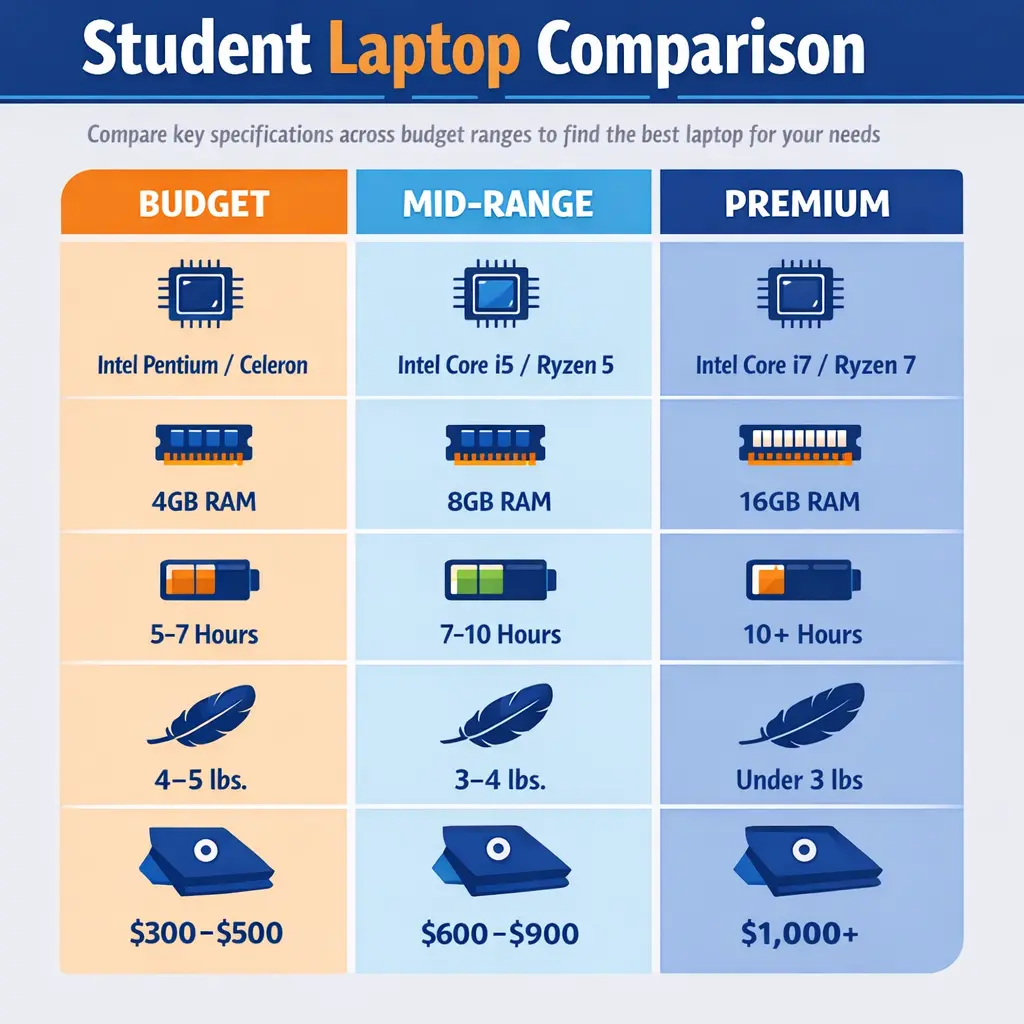
How Much Should You Spend on a Student Laptop?
Budget allocation depends on your major, financial situation, and how long you need the laptop to last.
Budget Range: $300-$600
This range works for students in liberal arts, business, humanities, and social sciences where coursework centers on web research, document creation, presentations, and video conferencing. Chromebooks dominate this category, offering excellent value for cloud-based work. Windows laptops at this price point make compromises in build quality or performance.
Best for: English, history, political science, psychology, marketing, general business, communications
Limitations: Struggles with specialized software, limited multitasking, shorter lifespan (2-3 years typical)
Mid-Range: $600-$900
This sweet spot delivers the best price-to-performance ratio for most college students. Laptops here handle demanding multitasking, run professional software, and provide build quality that lasts four years. You get solid processors, sufficient RAM, fast storage, and good battery life without paying for premium features you won’t use.
Best for: Most students across all majors, including light STEM work, business analytics, education, nursing, pre-med
Limitations: May struggle with intensive 3D modeling, professional video editing, or heavy programming compilation
Premium Range: $900-$1500
Premium laptops deliver superior build quality, longer battery life, better displays, and performance headroom for demanding applications. Engineering students, creative majors, and anyone running resource-intensive software benefit from this investment. These laptops easily last through undergraduate and graduate programs.
Best for: Engineering (all types), architecture, computer science, graphic design, film production, data science, music production
Limitations: Higher cost may strain budgets; many students won’t utilize full performance capability
High-End: $1500+
This territory suits specialized professional work, intensive 3D rendering, machine learning, professional video production, and high-end gaming. Most undergraduate students overspend in this range. Graduate students and those in specific professional programs justify this investment.
Best for: Advanced computer science (AI/ML focus), professional video/film students, architecture students doing complex rendering, game design majors
Limitations: Expensive, often heavier, sometimes shorter battery life due to power demands
Budget Reality Check:
Don’t assume more expensive automatically means better for your needs. A $1200 gaming laptop offers no advantage over a $700 business laptop for a marketing major writing papers. Conversely, a $500 Chromebook will frustrate an engineering student within the first semester.
Assess your actual software requirements before setting a budget. Check your department’s recommended specifications, review syllabi from major courses, and ask upperclassmen what they use.
Understanding Laptop Specifications (Simple Guide)
Technical specifications intimidate many students, but you only need to understand a few key components.
Processor (CPU): The Brain
The processor handles calculations and runs your programs. Think of it as the brain determining how fast your laptop completes tasks.
What students need:
- Budget option: Intel Core i3 or AMD Ryzen 3 (basic tasks only)
- Recommended: Intel Core i5 or AMD Ryzen 5 (handles most college work comfortably)
- Heavy users: Intel Core i7 or AMD Ryzen 7 (demanding programs and multitasking)
- Apple option: M1 or newer (excellent performance and battery life)
Avoid: Intel Celeron, Pentium, or AMD A-series (too slow for college work)
Practical difference: Opening 15 browser tabs while running Word and Zoom runs smoothly on i5/Ryzen 5 but lags on i3/Ryzen 3.
Memory (RAM): Active Workspace
RAM holds information your laptop actively uses. More RAM lets you run more programs simultaneously without slowdown.
What students need:
- Minimum: 8GB (sufficient for most students)
- Recommended: 16GB (comfortable multitasking, future-proofing)
- Specialized: 32GB (intensive engineering, video editing, virtual machines)
Practical difference: With 8GB, running Chrome with 20 tabs plus Word and Spotify works fine. Add Photoshop or programming tools, and you’ll notice lag. With 16GB, smooth operation across all typical student tasks.
Storage: File Cabinet
Storage holds your files, programs, and operating system. Two types exist with dramatic performance differences.
SSD (Solid State Drive): Fast, reliable, expensive per gigabyte. Your laptop boots in seconds, programs launch instantly, and files save quickly. Non-negotiable for good user experience.
HDD (Hard Disk Drive): Slow, outdated, cheaper. Avoid in 2027 except for external backup drives.
What students need:
- Minimum: 256GB SSD (adequate with cloud storage)
- Recommended: 512GB SSD (comfortable local storage)
- Heavy users: 1TB SSD (large file collections, video projects, game libraries)
Practical tip: Start with 256GB and use cloud storage (Google Drive, OneDrive) or external drives for large media collections. This saves significant money without compromising daily performance.
Graphics (GPU): Visual Processing
The graphics processor handles video, images, and visual effects.
Integrated graphics: Built into the processor. Fine for everyday tasks, video streaming, light photo editing.
Dedicated graphics: Separate card with its own memory. Required for gaming, 3D modeling, video editing, engineering simulation software.
What students need:
- Most majors: Integrated graphics (Intel Iris Xe, AMD Radeon)
- Creative/Engineering: NVIDIA GeForce GTX/RTX or AMD Radeon dedicated graphics
Display: Your Window
Resolution:
- 1920×1080 (Full HD): Standard, crisp, good battery life
- 2560×1440 (QHD): Sharper but drains battery faster
- 3840×2160 (4K): Unnecessary for students, terrible battery life
Panel type:
- IPS: Best viewing angles and color accuracy (choose this)
- TN: Cheap, poor viewing angles (avoid)
Practical need: 13-15 inch screen with 1920×1080 IPS panel suits most students perfectly.
Best Budget Laptops for Students ($300-$600)
Budget laptops handle core academic tasks without breaking the bank. These recommendations focus on reliability and essential features.
HP Chromebook x360 14
Price: $399-$449
Best for: Students using web-based tools and Google Workspace
This convertible Chromebook offers surprising versatility at a budget price. The 2-in-1 design lets you flip the screen for tablet mode during reading or presentations. The 14-inch 1920×1080 touchscreen provides clear text and comfortable workspace.
Key specifications:
- Intel Core i3 or AMD Ryzen 3 processor
- 8GB RAM
- 128GB SSD storage
- 10+ hour battery life
- 3.5 pounds
Strengths:
- Excellent battery life for all-day classes
- Fast Chrome OS performance
- Durable metal chassis
- Good keyboard for extended typing
- Touchscreen adds flexibility
- Automatic updates and strong security
Limitations:
- Chrome OS limits specialized software compatibility
- Storage fills quickly without cloud usage
- Not suitable for Windows-only programs
- Limited offline capability
Professional tip: This Chromebook excels for majors relying on web apps, Google Workspace, and cloud storage. Check if your required software runs on Chrome OS before committing.
Lenovo IdeaPad 3
Price: $499-$549
Best for: Windows users needing offline capability on a budget
The IdeaPad 3 delivers Windows functionality at Chromebook prices. This laptop handles Microsoft Office, basic programming, and light creative work that budget Chromebooks cannot.
Key specifications:
- AMD Ryzen 5 processor
- 8GB RAM
- 256GB SSD storage
- 7-8 hour battery life
- 15.6-inch 1920×1080 display
- 4.1 pounds
Strengths:
- Full Windows 11 compatibility
- Good processor performance
- Adequate storage
- Comfortable full-size keyboard with number pad
- Runs desktop applications
- Affordable price
Limitations:
- Plastic build feels less premium
- Average battery life
- Slightly heavy for constant carrying
- Basic display quality
Common mistake to avoid: Don’t buy the 4GB RAM version even if it’s $50 cheaper. The performance difference is dramatic, and 4GB becomes frustrating quickly.
ASUS VivoBook 15
Price: $549-$599
Best for: Students wanting better build quality in budget range
ASUS delivers better construction and design than typical budget laptops. The VivoBook 15 feels more expensive than its price tag suggests.
Key specifications:
- Intel Core i5 processor
- 8GB RAM
- 256GB SSD storage
- 8-9 hour battery life
- 15.6-inch 1920×1080 display
- 3.75 pounds
Strengths:
- Solid build quality with metal lid
- Thin and relatively lightweight for 15-inch size
- Responsive performance
- Good port selection including USB-C
- Fingerprint sensor for security
- Better display than competitors at this price
Limitations:
- Non-upgradeable RAM (soldered)
- Average keyboard quality
- Modest speakers
Best use case: Students in business, education, or social sciences who want Windows flexibility without compromising build quality.
Best Mid-Range Laptops for Students ($600-$900)
Mid-range laptops offer the best value proposition for most college students, balancing performance, build quality, and features.
Dell Inspiron 14
Price: $699-$799
Best for: Students prioritizing reliability and support
Dell’s Inspiron line provides dependable performance with excellent warranty options. This 14-inch model balances portability with usability.
Key specifications:
- Intel Core i5 (12th gen or newer)
- 16GB RAM
- 512GB SSD storage
- 9-10 hour battery life
- 14-inch 1920×1080 display
- 3.4 pounds
Strengths:
- 16GB RAM handles heavy multitasking
- Generous 512GB storage
- Comfortable keyboard with good travel
- Strong battery performance
- Multiple configuration options
- Dell student support and warranty services
- Clean design suitable for professional settings
Limitations:
- Display could be brighter
- Trackpad feels less premium than competitors
- Moderate speaker quality
Professional tip: Dell frequently offers student discounts reaching 20% off, making this laptop particularly attractive during back-to-school sales (July-September).
Lenovo ThinkPad E14
Price: $749-$849
Best for: Students wanting legendary keyboard and durability
ThinkPads built their reputation on exceptional keyboards and rugged construction. The E14 brings ThinkPad quality to student budgets.
Key specifications:
- AMD Ryzen 5 or Intel Core i5
- 16GB RAM
- 512GB SSD storage
- 10-12 hour battery life
- 14-inch 1920×1080 display
- 3.6 pounds
Strengths:
- Best-in-class keyboard (crucial for heavy typists)
- Military-grade durability testing
- Excellent trackpad with physical buttons
- Outstanding battery life
- Matte display reduces glare
- Strong hinges last years
- Professional appearance
Limitations:
- Conservative design (not flashy)
- Slightly bulkier than ultrabooks
- Display brightness average
Best use case: Students writing extensively (liberal arts, journalism, creative writing) who value typing comfort above all. Also excellent for business students wanting professional appearance.
HP Pavilion 14
Price: $679-$749
Best for: All-around performance and value
HP’s Pavilion strikes an excellent balance between features, performance, and price. This laptop does everything well without excelling in any particular area.
Key specifications:
- Intel Core i5 or AMD Ryzen 5
- 8GB RAM (16GB configurations available)
- 512GB SSD storage
- 8-9 hour battery life
- 14-inch 1920×1080 display
- 3.2 pounds
Strengths:
- Lightweight and portable
- Modern, clean design
- Good port selection
- Fast charging (50% in 30 minutes)
- Solid performance for general use
- Competitive pricing
Limitations:
- 8GB base RAM (upgrade recommended for $50-100)
- Plastic chassis despite nice appearance
- Moderate battery life
Configuration advice: Spend the extra $50-100 for 16GB RAM if your budget allows. The base 8GB model saves money upfront but may feel limiting by sophomore year.
MacBook Air M1 (Previous Generation)
Price: $899-$999 (Apple refurbished or education pricing)
Best for: Apple ecosystem users and students prioritizing battery life
The M1 MacBook Air remains an exceptional value despite newer M2 and M3 models. Apple’s student pricing and refurbished options make this premium laptop accessible.
Key specifications:
- Apple M1 chip (8-core CPU)
- 8GB unified memory
- 256GB SSD storage
- 15-18 hour real-world battery life
- 13.3-inch 2560×1600 Retina display
- 2.8 pounds
Strengths:
- Extraordinary battery life (full day and then some)
- Completely silent (no fan)
- Excellent display quality
- Best-in-class trackpad
- Fast, responsive performance
- Strong resale value
- Durable aluminum construction
- Integrates seamlessly with iPhone/iPad
Limitations:
- Only 256GB storage (difficult to expand)
- 8GB RAM not upgradeable
- Limited port selection (2 USB-C only)
- macOS incompatible with some Windows-only software
- More expensive than Windows equivalents
Money-saving tip: Apple’s education pricing saves $100. Certified refurbished MacBooks from Apple save another $150-200 and include full warranty.
Common misconception: “8GB isn’t enough RAM.” On Apple Silicon, 8GB unified memory performs differently than Windows RAM due to efficient architecture. It handles typical student tasks comfortably, though 16GB provides more headroom.
Best Premium Laptops for Students ($900-$1500)
Premium laptops justify higher prices through superior build quality, performance, displays, and features that matter for demanding coursework.
Dell XPS 13
Price: $999-$1299
Best for: Students wanting premium Windows ultrabook
The XPS 13 represents Windows ultrabook excellence. This laptop competes directly with MacBook Air in build quality while offering Windows flexibility.
Key specifications:
- Intel Core i5 or i7 (13th gen)
- 16GB RAM
- 512GB SSD storage
- 10-12 hour battery life
- 13.4-inch 1920×1200 display
- 2.6 pounds
Strengths:
- Stunning build quality with aluminum and carbon fiber
- Incredibly compact with minimal bezels
- Beautiful, color-accurate display
- Excellent keyboard and precision trackpad
- Fast performance
- Professional aesthetics
- Strong resale value
Limitations:
- Limited ports (adapters needed)
- Webcam quality mediocre
- Premium price
- Gets warm under heavy load
Best use case: Business students, pre-law, political science, or anyone wanting premium Windows experience with maximum portability.
MacBook Air M2
Price: $1099-$1199 (with education pricing)
Best for: Apple users wanting latest design and MagSafe charging
The M2 MacBook Air brings redesigned chassis, better display, and faster performance than the M1 generation.
Key specifications:
- Apple M2 chip (8-core CPU)
- 16GB unified memory (upgrade from base)
- 512GB SSD storage (upgrade from base)
- 15-18 hour battery life
- 13.6-inch 2560×1664 Liquid Retina display
- 2.7 pounds
Strengths:
- Thin, modern design in multiple colors
- MagSafe charging frees up USB-C port
- Brighter display than M1
- Excellent speakers
- Silent operation
- Outstanding battery life
- Superior trackpad and keyboard
Limitations:
- Base configuration underspecced (8GB/256GB)
- Expensive with necessary upgrades
- Limited to macOS software
- Only two USB-C ports
Configuration advice: The base $1099 model with 8GB/256GB saves money but feels limiting. Budget $1399-1499 for 16GB RAM and 512GB storage—the configuration that truly shines for four years.
ASUS ZenBook 14
Price: $899-$1099
Best for: Value-focused students wanting premium features
ASUS delivers premium laptop characteristics at hundreds less than competitors. The ZenBook punches above its price point.
Key specifications:
- AMD Ryzen 7 or Intel Core i7
- 16GB RAM
- 512GB SSD storage
- 10-12 hour battery life
- 14-inch 1920×1080 OLED display
- 2.9 pounds
Strengths:
- Gorgeous OLED display with deep blacks and vibrant colors
- Aluminum construction feels premium
- Strong performance
- Excellent price-to-feature ratio
- Compact and portable
- NumberPad (touchpad doubles as number pad)
Limitations:
- OLED burns battery faster than LCD
- Moderate port selection
- Less brand prestige than competitors
Professional tip: The OLED display makes this laptop exceptional for creative students (graphic design, photography, video) who need color accuracy without paying MacBook prices.
Lenovo ThinkPad X1 Carbon
Price: $1299-$1499
Best for: Students wanting ultimate business laptop
The X1 Carbon represents the pinnacle of business laptop design—lightweight, durable, powerful, and professional.
Key specifications:
- Intel Core i5 or i7 (12th gen or newer)
- 16GB RAM
- 512GB SSD storage
- 12-15 hour battery life
- 14-inch 1920×1200 display
- 2.48 pounds
Strengths:
- Incredibly lightweight for 14-inch laptop
- Carbon fiber construction (durable yet light)
- Legendary ThinkPad keyboard
- Outstanding battery life
- Extensive port selection
- Military durability standards
- Excellent webcam and microphone
- Professional appearance
Limitations:
- Expensive
- Conservative design (some find boring)
- Premium features some students won’t use
Best use case: Business majors, MBA students, or anyone pursuing corporate careers who want a laptop that transitions seamlessly into professional life.
Best High-End Laptops for Specialized Students ($1500+)
High-end laptops target students with specialized software requirements that demand maximum performance.
MacBook Pro 14-inch (M3)
Price: $1599-$1999 (education pricing)
Best for: Creative professionals (video, music, design)
The MacBook Pro targets professional creative work with performance that exceeds most student needs but justifies itself for intensive majors.
Key specifications:
- Apple M3 Pro chip
- 16GB unified memory (18GB on Pro chip)
- 512GB SSD storage
- 15-17 hour battery life
- 14.2-inch Liquid Retina XDR display (3024×1964)
- 3.4 pounds
Strengths:
- Exceptional performance for video editing, music production, 3D work
- Stunning display with HDR
- Excellent speakers
- Fast SSD
- Long battery life despite power
- Professional build quality
- Strong resale value
- Ports include SD card slot and HDMI
Limitations:
- Expensive
- Heavier than Air
- Overkill for most undergraduate work
Who actually needs this: Film production students, music production majors, professional photography students, advanced architecture students rendering complex projects.
Dell XPS 15
Price: $1599-$1899
Best for: Windows users needing workstation power in laptop form
The XPS 15 delivers desktop-class performance with dedicated graphics in a relatively portable package.
Key specifications:
- Intel Core i7 or i9 (13th gen)
- 16GB or 32GB RAM
- 512GB or 1TB SSD storage
- NVIDIA GeForce RTX 4050 dedicated graphics
- 8-10 hour battery life
- 15.6-inch 1920×1200 or 3840×2400 display
- 4.2 pounds
Strengths:
- Powerful dedicated graphics for engineering software, 3D modeling, gaming
- Beautiful 4K display option
- Strong build quality
- Good port selection
- Runs demanding Windows applications
- Upgradeable RAM and storage
Limitations:
- Heavy for daily carrying
- Expensive
- Battery life suffers under load
- Gets hot during intensive tasks
Best use case: Engineering students (mechanical, civil, aerospace) running CAD and simulation software, game design students, data science students running machine learning models.
ASUS ROG Zephyrus G14
Price: $1649-$1899
Best for: Students needing gaming performance without gaming aesthetics
The Zephyrus G14 packs gaming laptop power into a compact, relatively professional package suitable for campus use.
Key specifications:
- AMD Ryzen 9 processor
- 16GB or 32GB RAM
- 1TB SSD storage
- NVIDIA GeForce RTX 4060 dedicated graphics
- 6-8 hour battery life
- 14-inch 2560×1600 165Hz display
- 3.64 pounds
Strengths:
- Exceptional gaming and creative performance in compact size
- Fast, color-accurate display
- Surprisingly good battery life for gaming laptop
- Relatively subtle design (for gaming laptop)
- Excellent cooling system
- Strong build quality
Limitations:
- Shorter battery than ultrabooks
- Runs hot under full load
- Premium price
- Overkill for non-gaming, non-creative students
Professional tip: This laptop suits game design majors, students minoring in game development, or engineering students who also game seriously. The performance justifies the price only if you’ll use it.
Best Laptops by Major and Field of Study
Different majors have different computing needs. Match your laptop to your coursework requirements.
Liberal Arts (English, History, Philosophy, Languages)
Recommended: Budget to Mid-Range ($400-$800)
Minimum specs:
- Intel Core i3 or AMD Ryzen 3
- 8GB RAM
- 256GB SSD
- 8+ hour battery life
Top picks:
- HP Chromebook x360 14 ($399-449)
- Lenovo IdeaPad 3 ($499-549)
- MacBook Air M1 ($899-999)
Why these work: Liberal arts coursework centers on research, writing, reading, and discussion. Web browsers, word processors, and presentation software don’t demand high performance. Prioritize battery life, keyboard comfort, and portability.
Software needs: Microsoft Office or Google Workspace, web browsers, citation management (Zotero), PDF readers
Business and Economics
Recommended: Mid-Range ($700-$1000)
Minimum specs:
- Intel Core i5 or AMD Ryzen 5
- 8GB RAM (16GB preferred)
- 256GB SSD
- 8+ hour battery life
Top picks:
- Dell Inspiron 14 ($699-799)
- Lenovo ThinkPad E14 ($749-849)
- Dell XPS 13 ($999-1299)
Why these work: Business students run Excel with large datasets, financial modeling software, presentation tools, and video conferencing. Professional appearance matters for presentations and networking events. 16GB RAM makes Excel and multitasking much smoother.
Software needs: Microsoft Office (especially Excel), Tableau, QuickBooks, business analytics tools
Professional tip: ThinkPads carry subtle professional credibility in business settings. The conservative design communicates seriousness.
Engineering (All Types)
Recommended: Premium to High-End ($1000-$1800)
Minimum specs:
- Intel Core i7 or AMD Ryzen 7
- 16GB RAM (32GB for intensive work)
- 512GB SSD
- NVIDIA or AMD dedicated graphics
- Good cooling system
Top picks:
- Dell XPS 15 with RTX graphics ($1599-1899)
- Lenovo ThinkPad P14s ($1399-1699)
- ASUS ZenBook Pro 15 ($1499-1799)
Why these work: Engineering software (CAD, MATLAB, SolidWorks, ANSYS) demands processing power and dedicated graphics. Simulation, rendering, and compilation require RAM and fast processors. These laptops prevent frustration during intensive projects.
Software needs: AutoCAD, SolidWorks, MATLAB, Simulink, Python/programming environments, finite element analysis tools
Common mistake: Buying budget laptop freshman year, struggling sophomore year when courses intensify, then upgrading. Start with adequate power or plan for replacement.
Computer Science and Programming
Recommended: Mid-Range to Premium ($800-$1400)
Minimum specs:
- Intel Core i5 or AMD Ryzen 5 (i7/Ryzen 7 better)
- 16GB RAM
- 512GB SSD
- Good keyboard
- Linux compatibility (if relevant)
Top picks:
- MacBook Air M2 16GB ($1399-1499)
- Dell XPS 13 ($999-1299)
- Lenovo ThinkPad X1 Carbon ($1299-1499)
Why these work: Programming demands multitasking (IDE, documentation, browser, terminal, virtual machines). Compilation speed depends on processor and RAM. Keyboard quality matters during long coding sessions. Build quality ensures the laptop survives intensive daily use.
Software needs: IDEs (VS Code, IntelliJ, PyCharm), Docker, virtual machines, Git, terminal tools, database management systems
macOS vs. Windows vs. Linux: macOS offers Unix foundation with polished interface. Windows provides widest compatibility. Linux gives maximum control. All work well for CS students.
Graphic Design and Digital Art
Recommended: Premium to High-End ($1200-$2000)
Minimum specs:
- Intel Core i7, AMD Ryzen 7, or Apple M2
- 16GB RAM minimum (32GB ideal)
- 512GB SSD minimum
- Color-accurate display (100% sRGB minimum)
- Dedicated graphics preferred
Top picks:
- MacBook Pro 14 M3 ($1599-1999)
- ASUS ZenBook 14 OLED ($899-1099)
- Dell XPS 15 4K ($1699-1999)
Why these work: Adobe Creative Suite demands processing power, RAM, and color-accurate displays. Photoshop, Illustrator, and InDesign benefit from dedicated graphics. Display quality directly affects design decisions—poor color accuracy produces poor work.
Software needs: Adobe Creative Cloud (Photoshop, Illustrator, InDesign), Sketch, Figma, Procreate (iPad), Affinity suite
Display priority: Color accuracy matters more than resolution. OLED or high-quality IPS with 100% sRGB coverage minimum. Calibration capability important for print work.
Film and Video Production
Recommended: High-End ($1600-$2500)
Minimum specs:
- Intel Core i9, AMD Ryzen 9, or Apple M3 Pro
- 32GB RAM
- 1TB SSD
- Dedicated graphics (strong GPU)
- Color-accurate display
Top picks:
- MacBook Pro 14 M3 Pro ($1999-2499)
- Dell XPS 15 RTX 4060 ($1899-2299)
- ASUS ProArt StudioBook ($1799-2199)
Why these work: Video editing crushes lesser laptops. 4K footage demands massive processing power, RAM, and fast storage. Rendering times directly impact productivity. These laptops prevent hour-long rendering waits and choppy preview playback.
Software needs: Adobe Premiere Pro, DaVinci Resolve, After Effects, Final Cut Pro (Mac), Avid Media Composer
Storage reality: 1TB fills quickly with video projects. Budget for external SSD drives (2-4TB) for project storage. Internal SSD for active projects, external for archives.
Nursing and Pre-Med
Recommended: Budget to Mid-Range ($500-$900)
Minimum specs:
- Intel Core i5 or AMD Ryzen 5
- 8GB RAM
- 256GB SSD
- Good battery life
- Portable
Top picks:
- HP Pavilion 14 ($679-749)
- Lenovo IdeaPad 3 ($499-549)
- MacBook Air M1 ($899-999)
Why these work: Nursing and pre-med coursework involves research, note-taking, accessing learning management systems, and running specialized learning software. These aren’t computationally demanding. Portability matters for clinical rotations and long hospital days.
Software needs: Medical reference apps, anatomy software, learning management systems, Microsoft Office, citation management
Professional tip: Don’t overspend. Medical school is expensive. A mid-range laptop serves you well through undergraduate, then reassess before professional school.
MacBook vs. Windows vs. Chromebook for Students
Operating system choice significantly impacts your experience, software compatibility, and budget.
macOS (MacBook)
Strengths:
- Exceptional build quality and longevity
- Outstanding battery life (especially M-series chips)
- Seamless integration with iPhone/iPad
- Unix-based (great for programming)
- Excellent trackpad and keyboard
- Strong security
- Great resale value
- Free productivity software (Pages, Numbers, Keynote)
Weaknesses:
- Higher initial cost
- Limited software compatibility (some Windows-only programs)
- Difficult and expensive to repair
- Gaming library limited
- Fewer customization options
Best for: Creative majors, computer science, students in Apple ecosystem, anyone prioritizing reliability and battery life
Deal breakers: Major requires Windows-only software (some engineering programs), gaming focus, tight budget under $800
Windows
Strengths:
- Widest software compatibility
- Huge variety of hardware options at all price points
- Better for gaming
- More customization
- Easier and cheaper to repair
- Upgradeable components (some models)
- Familiar to most users
- Touchscreen options common
Weaknesses:
- Build quality varies dramatically by manufacturer
- More vulnerable to malware (though Windows Security is good)
- Battery life generally shorter than Mac
- Bloatware on budget models
- Updates sometimes problematic
Best for: Engineering, business, gaming, students needing software flexibility, budget-conscious students
Deal breakers: Strong preference for macOS, prioritizing maximum battery life, wanting simplest experience
Chrome OS (Chromebook)
Strengths:
- Excellent value for money
- Outstanding battery life
- Fast, responsive performance
- Automatic updates
- Strong security
- Simple, user-friendly
- Low maintenance
- Great for Google Workspace users
Weaknesses:
- Limited offline capability
- Can’t run Windows or Mac desktop applications
- Reliant on web apps
- Limited storage
- Not suitable for demanding software
- Less familiar to some users
Best for: Liberal arts, business (if cloud-based), students on tight budgets, users comfortable with cloud storage
Deal breakers: Need for specialized software (Adobe, CAD, etc.), prefer offline work, large local file storage needs
Decision Framework
Choose MacBook if:
- Budget supports $900+ investment
- You own iPhone/iPad
- You value reliability and longevity above all
- Your major is creative or computer science
- You want maximum battery life
- You dislike troubleshooting
Choose Windows if:
- You need specific Windows software
- Budget is under $900
- You want maximum choice and customization
- Your major is engineering or business
- You game regularly
- You’re comfortable with technology
Choose Chromebook if:
- Budget is under $600
- Your coursework is primarily web-based
- You use Google Workspace
- You’re comfortable with cloud storage
- Your major doesn’t require specialized software
- You want simplicity
Student Laptop Buying Checklist
Use this checklist before purchasing to ensure you’re making the right choice.
Requirements Assessment
Check your department requirements:
□ Review major-specific computer requirements from department website
□ Check syllabi for software mentioned in core courses
□ Ask academic advisor about computing needs
□ Contact upperclassmen in your major about their laptops
□ Verify compatibility with campus systems
Identify your actual needs:
□ List software you’ll definitely use
□ Estimate daily carrying distance
□ Consider how many hours daily you’ll use laptop unplugged
□ Assess your budget realistically
□ Determine if you need Windows-specific programs
□ Consider longevity goals (2 vs. 4 years)
Specification Verification
Processor:
□ Minimum Intel Core i5 / AMD Ryzen 5 / Apple M1 or better
□ Avoid Celeron, Pentium, or AMD A-series
□ Check generation (newer is better for efficiency)
Memory:
□ 8GB RAM minimum (16GB strongly preferred)
□ Verify if RAM is upgradeable (important for longevity)
Storage:
□ 256GB SSD minimum (512GB recommended)
□ Confirm SSD not HDD
□ Check if storage is expandable
Battery:
□ Real-world battery life 8+ hours
□ Read reviews for actual (not claimed) battery performance
□ Consider fast charging capability
Display:
□ 1920×1080 resolution minimum
□ IPS panel type
□ Size appropriate for portability (13-15 inches)
Build Quality:
□ Metal chassis preferred over plastic
□ Check hinge quality reviews
□ Verify keyboard is comfortable for extended typing
□ Test trackpad responsiveness
Ports:
□ At least 2 USB ports
□ USB-C charging preferred
□ Consider adapter needs
□ Headphone jack (still relevant)
Other:
□ Webcam quality adequate for video calls
□ WiFi 6 or newer
□ Weight under 4 pounds if carrying daily
Purchase Planning
Timing:
□ Check for back-to-school sales (July-September)
□ Investigate student discounts (Apple, Dell, Lenovo, HP all offer)
□ Consider Black Friday/Cyber Monday (November)
□ Look at certified refurbished options from manufacturers
Budget:
□ Set maximum budget including tax
□ Budget for essential accessories (laptop bag, mouse)
□ Consider warranty/protection plan cost
□ Plan for software licensing if needed
□ Set aside emergency fund for repairs
Where to buy:
□ Compare student pricing on manufacturer websites
□ Check campus bookstore deals (sometimes bundle software)
□ Review prices at Best Buy, Amazon, B&H
□ Consider certified refurbished from Apple, Dell, etc.
□ Avoid third-party sellers with too-good-to-be-true prices
Warranty and protection:
□ Understand included warranty (typically 1 year)
□ Consider extended warranty for expensive laptops
□ Evaluate accidental damage protection (worth it for $1000+ laptops)
□ Check homeowner’s/renter’s insurance coverage
□ Keep purchase receipt and warranty documentation
Pre-Purchase Validation
Final checks before buying:
□ Read professional reviews from trusted sources
□ Check user reviews for real-world experience
□ Verify return policy (30 days minimum)
□ Confirm specification sheet matches listing
□ Double-check compatibility with required software
□ Ensure you’re buying current-generation model (unless intentionally buying previous gen for savings)
Where to Buy and How to Save Money
Strategic purchasing saves hundreds on student laptops without compromising quality.
Best Places to Buy
Manufacturer Direct (Apple, Dell, HP, Lenovo):
- Student discount programs (10-20% off)
- Certified refurbished options
- Customization available
- Best warranty support
- Promotional financing sometimes available
Campus Bookstore:
- Sometimes exclusive student bundles
- Pre-configured for campus requirements
- Convenient for issues/returns
- Software bundles included sometimes
- Often overpriced compared to other options
Best Buy:
- Price matching policy
- Student deals program
- In-person examination before purchase
- Geek Squad support available
- Regular sales and promotions
Amazon:
- Competitive pricing
- Fast shipping (Prime)
- Easy returns
- Watch for Lightning Deals
- Verify seller legitimacy (buy from manufacturer or Amazon direct)
B&H Photo:
- Competitive prices
- No sales tax (for some states)
- Excellent customer service
- Trustworthy
- Good for creative professionals
Money-Saving Strategies
Student Discounts:
Apple Education Pricing saves $100-200 plus free AirPods during back-to-school promotions. Available to college students with .edu email.
Dell University offers 10-20% off plus free shipping. Create account with student email.
Microsoft Education Store provides discounts on Surface laptops.
Lenovo Student Discount reaches 20% off during promotions.
HP Student Discounts typically 10-30% off select models.
Timing Purchases:
Back-to-School Sales (July-September) offer best student-focused deals. Manufacturers compete for student dollars.
Black Friday/Cyber Monday (late November) delivers deep discounts but less inventory of popular models.
Amazon Prime Day (July) sometimes has laptop deals.
New Product Launches mean discounts on previous-generation models. MacBook Air M1 dropped when M2 launched.
Certified Refurbished:
Manufacturer refurbished units save 15-30% with full warranty. Apple, Dell, Lenovo offer excellent refurbished programs.
Refurbished doesn’t mean broken—often open-box returns or display units.
Look for “manufacturer certified” not “third-party refurbished.”
Consider Previous Generation:
Last year’s model offers 90% of performance at 70% of price.
MacBook Air M1 remains excellent despite M2/M3 releases.
12th gen Intel performs nearly identically to 13th gen for most tasks.
Graphics cards—previous generation adequate for student needs.
Cashback and Credit Card Rewards:
Cashback sites (Rakuten, TopCashback) offer 2-10% back at various retailers.
Credit cards with purchase protection and extended warranty can add value.
Student credit cards sometimes offer bonus categories for electronics.
What Not to Compromise:
Don’t buy underpowered specs to save $100—you’ll regret it for years.
Don’t skip warranty on laptops over $1000.
Don’t buy from sketchy third-party sellers offering suspicious deals.
Don’t sacrifice essential features (SSD, adequate RAM) for cosmetic preferences.
Common Student Laptop Mistakes to Avoid
Learn from these frequent errors to make a better purchase decision.
Mistake 1: Buying Based on Brand Alone
The error: Choosing a laptop because “everyone has this brand” without evaluating your specific needs.
Why it’s wrong: Brand prestige doesn’t guarantee the right laptop for your coursework. A MacBook Pro is overkill for an English major; a gaming laptop is wrong for business school; a Chromebook frustrates engineering students.
Better approach: Identify your major’s requirements first, then evaluate brands that meet those needs within your budget.
Mistake 2: Skimping on RAM to Save $50-100
The error: Buying 4GB or 8GB when 16GB is available for slightly more money.
Why it’s wrong: RAM is often non-upgradeable in modern laptops. Insufficient RAM causes slowdowns, crashes, and frustration that compounds over four years. The $75 you save costs you hundreds of hours of poor performance.
Better approach: Prioritize RAM in your budget. Cut storage instead (you can use external drives) but get adequate RAM.
Mistake 3: Falling for “Gaming Laptop” Marketing
The error: Buying a gaming laptop for school because it’s “powerful,” without considering weight, battery life, and appropriateness.
Why it’s wrong: Gaming laptops are heavy (5-7 pounds), have short battery life (3-5 hours), run hot, and look unprofessional in academic settings. Most students don’t need gaming performance for coursework.
Better approach: If you game AND need a laptop for school, evaluate whether you need gaming on the go or if a desktop for gaming + laptop for school makes more sense. If you need one device, choose a “creator” laptop over pure gaming laptop.
Mistake 4: Ignoring Battery Life
The error: Focusing entirely on performance and price without checking real-world battery life.
Why it’s wrong: Short battery life means constant outlet hunting, charging anxiety, and inability to work freely in libraries, coffee shops, or outdoor spaces. You’ll resent a powerful laptop that dies in 4 hours.
Better approach: Prioritize 8+ hours real-world battery for all-day usability. Read reviews for actual battery performance, not manufacturer claims.
Mistake 5: Buying Too Much Computer
The error: Purchasing a $2000 workstation laptop for liberal arts coursework because “I want it to last” or “I might need it.”
Why it’s wrong: Overspending on unused performance wastes money better spent on other educational expenses. A $2000 laptop doesn’t last twice as long as a $1000 laptop for basic tasks.
Better approach: Match laptop to actual requirements. Buy for known needs, not hypothetical future scenarios. If your needs change dramatically, sell and upgrade then.
Mistake 6: Choosing Style Over Substance
The error: Buying the thinnest, prettiest laptop even though it lacks ports, has poor keyboard, or sacrifices battery for aesthetics.
Why it’s wrong: Daily usability frustrations accumulate. A gorgeous laptop that’s awkward to use becomes annoying, while a practical laptop becomes invisible (in a good way).
Better approach: Test keyboard and trackpad in person. Ensure essential ports exist. Prioritize comfortable daily use over appearance.
Mistake 7: Neglecting Warranty
The error: Skipping extended warranty or accidental damage protection on expensive laptops.
Why it’s wrong: College environments are tough on electronics. Spills, drops, and backpack damage happen. A $1500 laptop with a cracked screen costs $400-800 to repair.
Better approach: For laptops over $1000, strongly consider manufacturer’s accidental damage protection. It’s insurance against costly repairs during critical times (finals, thesis deadlines).
Mistake 8: Buying Too Early
The error: Purchasing a laptop in spring for college starting in fall.
Why it’s wrong: Technology improves and prices drop. A laptop bought in March will be outdated or more expensive than if you’d waited for summer sales.
Better approach: Buy 2-4 weeks before you need it. This captures sales while ensuring you have time for setup and potential returns.
How to Make Your Laptop Last Through Graduation
Proper care extends laptop life from two years to four-plus, maximizing your investment.
Physical Protection
Invest in a quality laptop bag or sleeve. A $30 padded sleeve prevents hundreds in damage. Look for reinforced corners and water-resistant material.
Use a keyboard cover on MacBooks. Dust and spills that damage the keyboard cost $400+ to repair on modern MacBooks where keyboards are integrated with top case.
Keep liquids away. No open drinks near your laptop, ever. Coffee spills are the number one cause of student laptop death.
Clean regularly. Dust accumulation reduces cooling efficiency. Use compressed air monthly to clean vents. Wipe screen and keyboard with microfiber cloth weekly.
Avoid extreme temperatures. Don’t leave your laptop in a car (hot or cold). Extreme temperatures damage batteries and components.
Battery Health
Avoid full discharges. Modern lithium batteries last longest when kept between 20-80% charge. Fully draining regularly shortens lifespan.
Use optimized charging features. Windows laptops and MacBooks have battery optimization that learns your schedule and reduces battery wear.
Unplug when fully charged (if your laptop doesn’t have charge limiting). Staying at 100% constantly degrades battery faster.
Calibrate occasionally. Every 2-3 months, run battery from 100% to 10% then recharge fully to recalibrate battery meter.
Software Maintenance
Keep operating system updated. Security patches and performance improvements matter. Enable automatic updates.
Uninstall bloatware. Budget Windows laptops come with unnecessary trial software. Remove it to improve performance.
Run antivirus/security software. Windows Defender (built-in) is sufficient for most students. Mac users should stay cautious despite lower malware risk.
Manage startup programs. Disable programs you don’t need running at boot. This speeds startup and reduces background resource use.
Clean up storage regularly. Delete old downloads, clear browser cache, uninstall unused programs. Use built-in storage management tools.
Backup Strategy
Follow 3-2-1 rule: 3 copies of important files, on 2 different media types, with 1 copy off-site.
Use cloud storage. Google Drive, OneDrive, or iCloud for automatic backup of key documents.
External hard drive. Weekly or monthly backup to external SSD of large files not in cloud.
Version control for code. Computer science students should use Git/GitHub for all programming projects.
Upgrade When Possible
Add RAM if upgradeable. Some laptops allow RAM upgrades. Adding RAM after 2 years extends useful life.
Replace battery. Around year 3, battery capacity drops noticeably. Replacement batteries cost $50-150 and dramatically improve experience.
Upgrade storage. If your laptop has upgradeable storage, replacing 256GB with 512GB or 1TB SSD breathes new life into aging laptops.
When to Replace
Replace when:
- Repairs cost more than 50% of replacement value
- Performance actively interferes with coursework
- Battery life drops below 3-4 hours with new battery unavailable
- Software requirements exceed hardware capabilities
- Multiple components failing simultaneously
Don’t replace just because:
- It’s a few years old but works fine
- There’s a newer model (unless you need new features)
- Cosmetic wear (scratches don’t affect function)
- Minor slowdowns fixable with cleanup and optimization
FAQs
How much RAM do college students really need?
Most college students need 8GB RAM minimum and 16GB for comfortable multitasking and future-proofing. The 8GB threshold handles web browsing with many tabs, Microsoft Office applications, video conferencing, and basic photo editing simultaneously without performance issues. However, 16GB provides significant headroom for more demanding multitasking and prevents your laptop from feeling sluggish as software becomes more resource-intensive over your college years.
Students in specific majors need more: engineering students running CAD software, computer science students using virtual machines and IDEs, and creative students working with Adobe Creative Suite all benefit from 16GB minimum and should consider 32GB for professional-level work. If your laptop has upgradeable RAM, starting with 8GB and upgrading to 16GB later works as a budget strategy. Most modern ultrabooks have soldered RAM that’s non-upgradeable, making your initial choice permanent.
Don’t buy 4GB RAM laptops in 2027 even if they’re cheap—they cause constant frustration with modern software and multitasking demands.
Are Chromebooks good enough for college students?
Chromebooks work excellently for college students whose coursework is primarily web-based, which includes most liberal arts, humanities, business, and social science majors. Students who primarily write papers, conduct online research, create presentations, use learning management systems, and participate in video conferences will find Chromebooks fast, reliable, and excellent value.
Chromebooks cannot run Windows or Mac desktop applications, which creates limitations for students needing specialized software. Engineering programs requiring AutoCAD or SolidWorks, creative programs using Adobe Creative Suite, and some business analytics courses requiring desktop software won’t work on Chromebooks. Additionally, some professors require specific Windows or Mac software for their courses.
Before buying a Chromebook, check your major’s computer requirements, review syllabi for upcoming courses, and verify that Google Workspace and web-based alternatives satisfy your program’s needs. If you’re uncertain or your major requires specialized software, choose a Windows or Mac laptop instead. The money saved on a Chromebook isn’t worth it if you discover sophomore year that you can’t run required software.
Should students buy AppleCare or extended warranties?
Extended warranties and protection plans make sense for laptops costing over $1000, especially for students who are harder on devices or accident-prone. College environments expose laptops to spills, drops, theft, and other damage more than typical use. AppleCare+ for Mac covers accidental damage for three years, including screen repairs and liquid damage, which can save hundreds on repairs during critical academic periods.
For Windows laptops, manufacturer warranties (Dell Premium Support, Lenovo Accidental Damage Protection, HP Care Pack) similarly protect against common student scenarios. The cost typically ranges from $150-300 for multi-year coverage, which is reasonable insurance on a $1000-1500 investment.
Skip extended warranties on budget laptops under $600. The warranty cost represents a large percentage of the laptop’s value, and economic repair often doesn’t make sense anyway. Instead, that money is better saved toward replacing the laptop if something goes wrong.
Standard manufacturer warranties (typically one year) cover defects and manufacturing issues but not accidental damage. If you’re careful with your belongings and have homeowner’s or renter’s insurance that might cover electronics, extended warranties may be unnecessary. Assess your personal risk tolerance and past track record with electronics.
Can you game on a regular student laptop?
Modern student laptops with integrated graphics can handle casual gaming, esports titles, and older games reasonably well, but struggle with AAA titles at high settings. Intel Iris Xe graphics (found in 11th gen and newer Intel processors) and AMD Radeon graphics (in Ryzen 5000 series and newer) play popular esports games like League of Legends, Valorant, Rocket League, and Minecraft at 60+ fps on medium settings.
These integrated graphics cannot run demanding games like Cyberpunk 2077, Red Dead Redemption 2, or recent Call of Duty titles at playable frame rates without severely reducing graphics settings and resolution. If gaming is a priority, you need a laptop with dedicated NVIDIA GeForce or AMD Radeon graphics cards.
Consider whether you need gaming portability or if a desktop gaming PC plus lightweight laptop for school makes more sense. This combination often costs the same as a gaming laptop while providing better gaming performance, longer battery life for school work, and appropriate tools for different contexts. Gaming laptops are heavy (5-7 pounds), have poor battery life (3-5 hours), and look out of place in professional academic settings.
If you need one device and game regularly, look for “creator” or “performance” laptops rather than gaming-branded models. They offer similar specs with more professional designs and sometimes better battery life.
What’s the difference between SSD and HDD storage?
SSDs (Solid State Drives) use flash memory with no moving parts, making them dramatically faster, more reliable, and more power-efficient than HDDs (Hard Disk Drives), which use spinning magnetic platters. The performance difference is transformative: laptops with SSDs boot in 10-15 seconds versus 1-2 minutes with HDDs, applications launch instantly versus waiting, and file operations complete quickly versus slowly.
In 2027, there is no reason to buy a laptop with HDD storage for student use. Even budget Chromebooks include SSD storage. Any new laptop with HDD storage is using outdated technology to appear cheaper while delivering frustrating performance. The speed difference affects your daily experience hundreds of times—every boot, every program launch, every file save.
Some budget laptops offer “32GB eMMC” storage, which is flash-based like SSD but slower. It’s acceptable for Chromebooks relying on cloud storage but insufficient for Windows laptops that need local application storage.
If you’re choosing between a laptop with more HDD storage (500GB, 1TB) or less SSD storage (256GB), choose the SSD every time and use cloud storage or external drives for large file collections. The performance difference is worth the storage tradeoff.
Do students need Microsoft Office or is Google Workspace enough?
Most colleges provide free Microsoft Office 365 access to students through campus licenses, eliminating the question of purchasing it separately. Check your campus IT website or student email for Office 365 access instructions—you likely have it already.
Google Workspace (Docs, Sheets, Slides) handles most student needs excellently and offers collaboration features superior to Microsoft Office. For writing papers, creating presentations, basic spreadsheets, and group projects, Google Workspace is not just “good enough” but often better due to real-time collaboration and cloud-based accessibility.
Microsoft Office becomes necessary in specific scenarios: business students using advanced Excel functions (macros, Power Pivot, complex financial modeling), students in courses specifically teaching Office applications, and when professors require Office-specific file formats that don’t convert perfectly from Google Workspace. Additionally, some professional fields expect Office proficiency, making it valuable to learn.
If your campus doesn’t provide Office 365, evaluate whether Google Workspace satisfies your program’s needs before purchasing. Many students complete entire degrees using only Google Workspace. If you occasionally need Office, free online versions (Office.com) provide basic functionality without purchasing licenses.
How important is laptop weight for college students?
Laptop weight dramatically affects daily quality of life for students carrying devices across campus multiple times daily. The difference between a 2.8-pound ultrabook and a 5-pound laptop feels minimal when picking up but significant after walking a mile across campus, climbing stairs, and repeating this several times daily for months.
Students in large campuses (sprawling state universities) should prioritize laptops under 3.5 pounds. Students in small campuses or commuters who primarily use their laptop in one location can tolerate 4-5 pounds more comfortably. If you’re frequently moving between dorm, library, academic buildings, and coffee shops, every half-pound matters.
Weight correlates with screen size. Thirteen-inch laptops typically weigh 2.5-3.5 pounds, while 15-inch models weigh 3.5-5 pounds. Most students find 13-14 inch laptops the ideal balance between portability and usable screen real estate.
Beyond weight, consider your entire carrying load. Laptop plus charger, textbooks, water bottle, and other daily items compound quickly. A laptop 1 pound lighter means 1 pound less every day for four years. Your back and shoulders will notice.
For reference, complaints about laptop weight begin around 4 pounds for daily campus carrying. Over 5 pounds, most students find devices burdensome.
Is it better to buy a laptop before college or after arriving on campus?
Buy your laptop 2-4 weeks before classes start for optimal timing. This window allows you to take advantage of back-to-school sales (July-August) while giving yourself time to set up the device, install necessary software, troubleshoot any issues, and process returns if needed.
Buying too early (spring for fall semester) means you miss summer sales, buy older models before updates, and risk having an unused laptop sitting around for months before you need it. Buying too late (week before or during first week) creates stress if you encounter issues, limits time to find deals, and may mean missing out on sold-out popular models.
Some students wait to buy on campus after arriving to see what peers use or take advantage of campus bookstore bundles. This strategy rarely saves money—campus bookstores typically charge premium prices—and creates risk if you need your laptop immediately for coursework.
If you’re unsure about requirements, contact your department or academic advisor in late spring/early summer to clarify computer needs, then shop during July-August sales. Most departments list computer requirements on their websites or in new student guides.
International students and those traveling long distances should buy before arriving to avoid the complication of purchasing in a new location, potentially in a different language or with unfamiliar retailers.
Should students buy refurbished or used laptops?
Manufacturer-certified refurbished laptops offer excellent value with minimal risk. Apple, Dell, Lenovo, and other major manufacturers thoroughly inspect, repair, and certify refurbished units, then sell them with full warranties at 15-30% discounts. These laptops are often simply customer returns, open-box items, or display models with minimal actual use.
Buy refurbished only from the manufacturer directly (Apple Certified Refurbished, Dell Outlet, Lenovo Outlet), not from third-party sellers or general marketplaces. Manufacturer refurbished includes warranty support, return policies, and quality assurance that third-party refurbished lacks.
Used laptops from individuals (Craigslist, Facebook Marketplace, eBay) carry more risk. You get no warranty, unknown usage history, potential hidden damage, and no recourse if problems emerge. If buying used from individuals, meet in person to inspect and test the device thoroughly, verify it’s not stolen (check serial numbers), and pay through protected methods (PayPal Goods & Services, not friends/family).
Best refurbished opportunities: previous-generation MacBooks when new models launch (M1 MacBooks when M2 released), business laptops from corporate lease returns (ThinkPads), and overstock from seasonal sales.
Avoid refurbished: budget laptops (small savings), very old models (3+ years, outdated), or suspiciously cheap deals (likely scams or damaged units).
What laptop accessories do students actually need?
Start with essential accessories and add others based on experience with your specific needs and workflow.
Essential (buy with laptop):
Protective sleeve or laptop bag ($20-50): Prevents damage during transport
Cleaning cloth ($5-10): Maintains screen and keyboard cleanliness
USB backup drive or cloud storage subscription ($30-60): Protects against data loss
Highly recommended (buy within first semester):
External mouse ($15-40): More comfortable for extended use than trackpad
Laptop stand ($20-40): Improves ergonomics and cooling
USB-C hub or adapter ($30-60): Expands port options on minimal-port laptops
External monitor ($100-200): Dramatically improves productivity for multi-window work
Optional (buy if specific need emerges):
External keyboard ($50-100): For dorm desk setup
Webcam upgrade ($60-100): If built-in webcam is poor quality
External SSD ($80-150): For additional fast storage or backups
Laptop lock ($20-40): For securing laptop in library or dorm
Privacy screen ($30-50): Prevents shoulder surfing in public spaces
Probably unnecessary:
Laptop cooling pads (modern laptops have adequate cooling)
Screen protectors (unnecessary for laptops)
Fancy RGB accessories (aesthetic preference, no functional value)
High-end audio equipment for casual listening
Buy accessories as you discover you need them rather than purchasing everything upfront. Your usage patterns will reveal what actually improves your workflow versus what seemed like a good idea but sits unused.








Leave a Reply